Find and merge duplicate clients
Last updated: October 12, 2026
This article shows you how to find clients that appear more than once in your Clients list, merge them into one record, and stop new duplicates being created.
A duplicate is the same person with two or more client records. It usually happens when a meeting booking arrives from a different email address, or when a client was typed in by hand during report creation. A record created from an invitation is a normal client record: it is not removed on its own, so merge it into the synced record, or delete it, once you are sure it is the same person. Merging keeps every report, meeting and document from each record.
Before you begin
- You need access to the Clients page. Any adviser, paraplanner or admin can merge the clients they can see.
- Have the client's correct primary email to hand, so you can check which record should survive.
- If one of the records is linked to your back office system, note which one. The merged record keeps that link.
Find your duplicates
- Open Clients from the left-hand menu. If AdvisoryAI has found possible duplicates, a notice at the top of the page tells you how many. They are matched on name, email or back office reference, and each affected record carries a Duplicate tag next to its name.
- Click Duplicates in the top right of the page, or Review duplicates in the notice. The list changes to show only records that look like the same person, sorted by name so each group sits together.
- Search by client name if you want to work on one person at a time. The search box filters the Duplicates view in the same way as the full list.
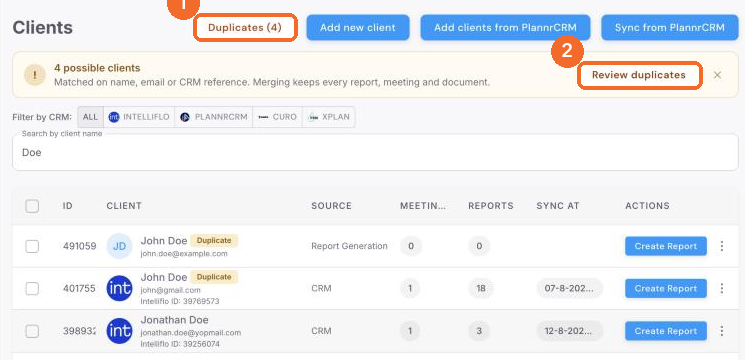
Please note: a match is a suggestion. Two people can share a name, so check the email, back office reference and meeting history before you merge.
Please note: duplicates are found among the clients you own. A record created by a colleague for the same person is not paired with yours. Paraplanners can merge across other users' clients from the Other Clients listing; advisers can only merge their own. If your firm would rather not see duplicate suggestions, support can switch the feature off for your organisation.
Merge the records
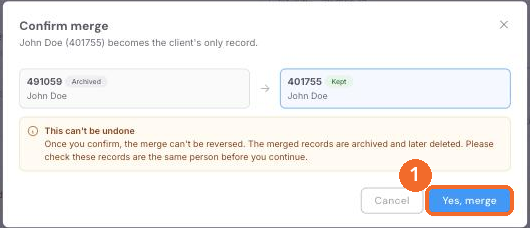
A merge cannot be reversed, so check the records are the same person before you start. Everything on the merged records is kept, but the records themselves become one.
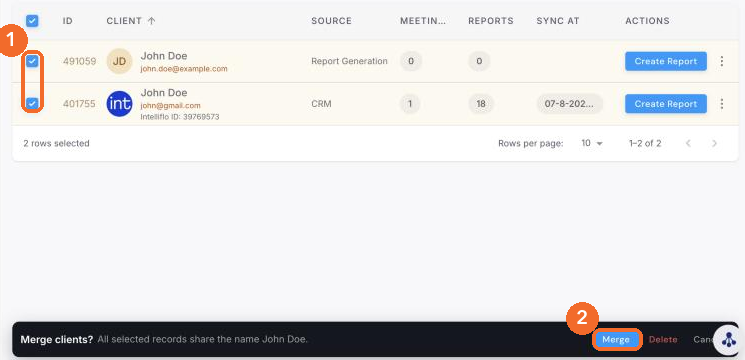
- Tick the checkbox next to each record that belongs to the same person. You can merge more than two at once.
- A bar appears at the bottom of the page headed Merge clients? and confirms what the selected records share. Click Merge.
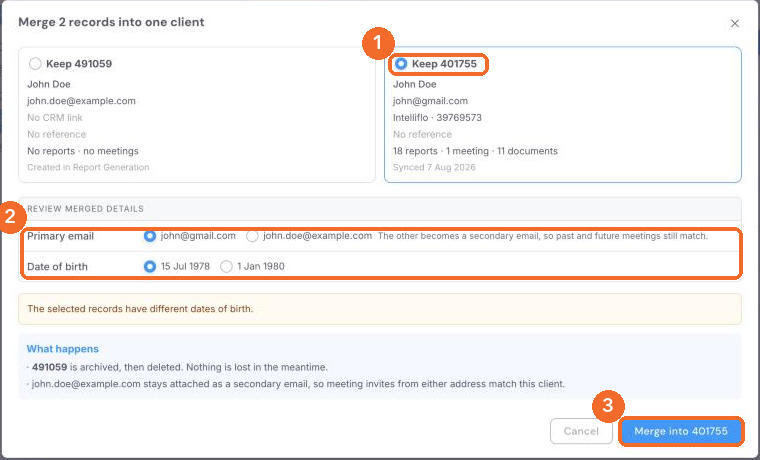
- In the Merge records into one client dialog, each record shows its email, back office link and reference, and how many reports, meetings and documents it holds. Select Keep on the record that should survive. Choose the one with the back office link if there is one, otherwise the one with the most history.
- Check Review merged details. Where the records disagree, for example on primary email or date of birth, pick the value to keep. The other email address stays attached as a secondary email, so meeting invites from either address still match this client.
- Read What happens. The other record is archived, then deleted, and its reports, meetings and documents move to the surviving record first. Nothing is lost in the meantime.
- Click Merge into [ID], then Yes, merge on the confirmation. The surviving record now holds everything, and the Duplicates count goes down.
Please note: the bar also offers Delete. That removes the selected records and their history outright. Use Merge when you want to keep anything.
If two matched records are different people, leave them unticked. There is no way to mark a pair as different people yet, so they stay in the Duplicates view and in the count. That is expected. You can dismiss the notice on the Clients page with the cross.
Stop new duplicates
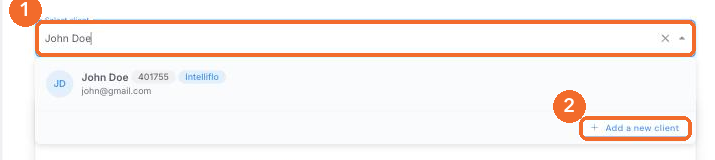
Choose the client from a list when you create a report. On the Add Client Information step, the Select client box searches your clients by name or email, including any secondary emails. Pressing Enter picks a client from the list and never creates one. A record that looks like someone you already have is labelled Possible duplicate. To add someone new, click Add a new client at the bottom of the list.
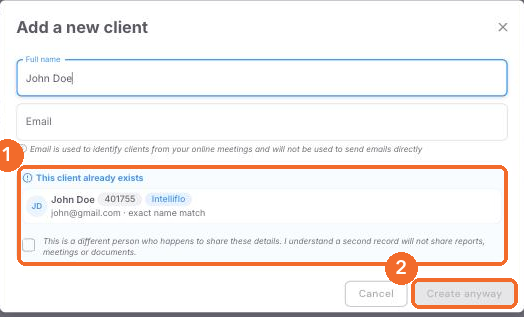
If the name or email you enter matches an existing client, the popup shows This client already exists with the matching record. To go ahead anyway, tick the box confirming this is a different person who happens to share these details, then click Create anyway. A second record created this way will not share reports, meetings or documents with the first.
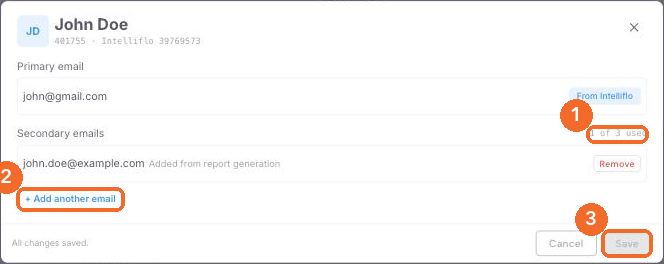
Give a client more than one email address. Open the client's page and click Add Email. The primary email is shown first, and if it came from your back office system it is marked as such. Click Add another email for each extra address, up to three secondary emails, and Save. A booking or document that arrives from any of those addresses now lands on the right client.
Also asked
Why do two of my users appear twice on the usage dashboard, once with their real numbers and once with nothing?
The empty row is usually an old entry left behind when the user's role was changed, for example from Adviser or Supervisor to Paraplanner+.
The row with the activity is the live user, and the empty one does not affect their access or their numbers. Email support@advisoryai.com with the user's name and email and a screenshot of the two rows; the team checks which entry is live and raises removal of the empty one with the developers, because it is not something you can tidy from the Team page.
Can the SharePoint integration help us cleanse and organise mislabelled and duplicated client files, not just read them?
Not yet. The SharePoint integration reads across everything in your SharePoint and judges what is relevant; it does not rename, move or de-duplicate files.
That is the first phase of the integration. Hard links between a SharePoint folder and a client profile, and firm-level context folders, are still being explored with the developers, with no date to give. Duplicate handling inside the platform works on client records, as above, not on files. If you have a specific clean-up in mind, email support@advisoryai.com with an example of the mislabelled files, so it is logged against that work.
Next steps
- Work through the Duplicates view once, then check it after any bulk import from your back office system.
- If a pair will not merge, email support@advisoryai.com with the two client IDs from the list.
Related articles
Ready to tidy your list? Open AdvisoryAI, go to Clients and click Duplicates.