Manually adding a new client
Last updated: October 12, 2026
This article shows you how to add a client by hand, move a meeting that landed on the wrong record, move clients to another adviser, and delete a record you no longer need.
Client records are normally created for you. When a meeting comes through your connected calendar, Evie creates a record from the participants on the invitation, so most clients appear without any extra work. You add a client manually when they were not on the calendar invite, or when you want the record ready before your first meeting.
Before you begin
Any adviser, paraplanner or admin can add a client. Advisers see only their own clients, while power planner roles also see other advisers' clients under the Other Clients tab.
Have the client's full name, email address and date of birth to hand. All four fields are required.
Check the Clients list first. If the person already exists, add a second email to their record rather than creating a new one (see below).
Add a client manually
Go to Clients in the left-hand menu.
Click Add new client in the top right corner.
Enter the client's First Name, Last Name, Email and Date of Birth.
Click Create Client.
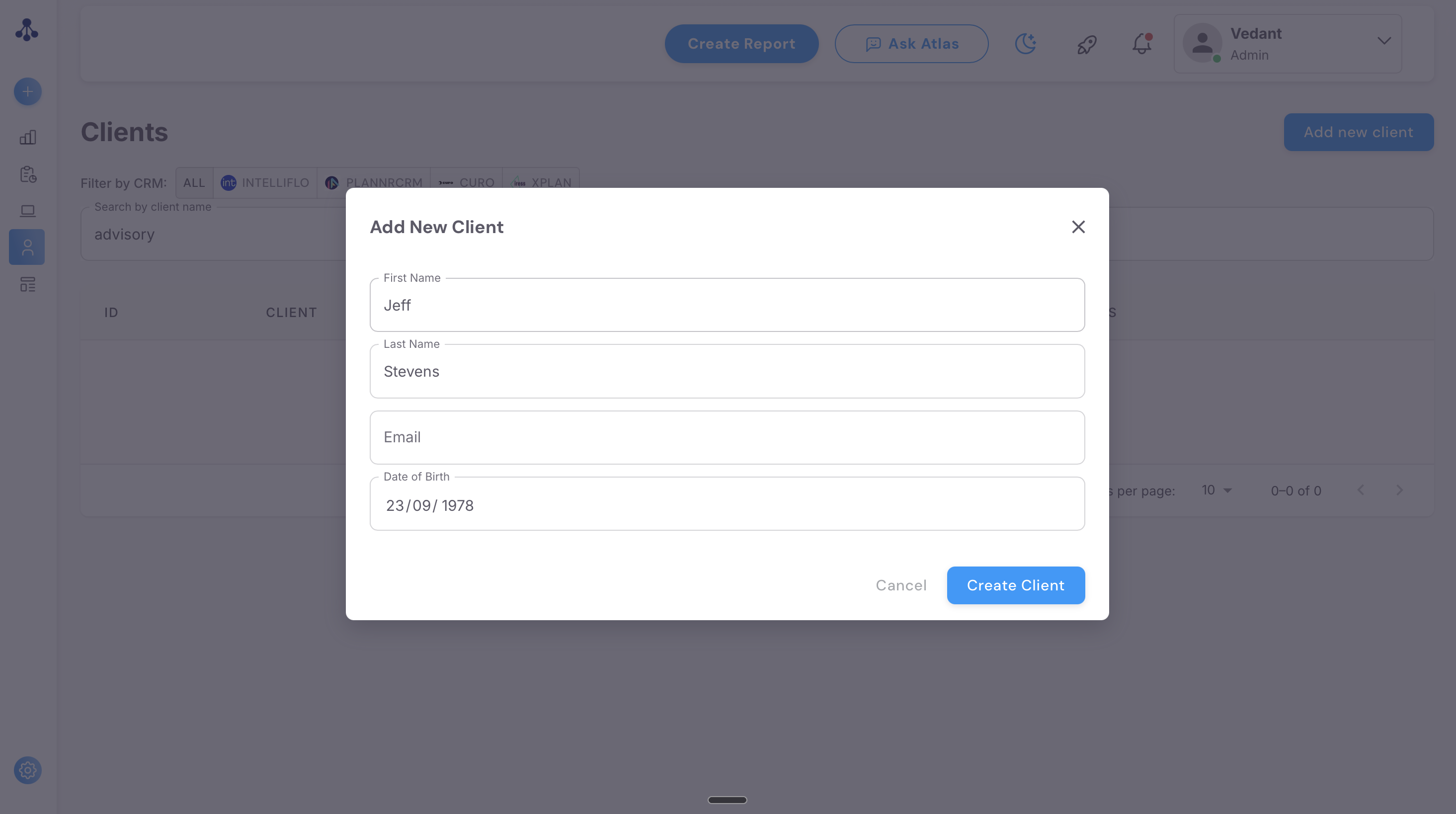
The client now appears in the Clients list, and any meetings or documents associated with them show on their record.
Please note: if the name or email you enter matches an existing client, the platform warns you before it creates a second record. Creating one anyway gives you a duplicate whose reports, meetings and documents do not share with the first. Duplicates usually come from a name mismatch between meetings (one invite says the full name, another a shortened form, so the meeting is not matched to the existing record), from adding a client by hand when a record pulled from your back office system already exists, or from a paraplanner pulling their own copy of a client instead of opening the adviser's record. For the warning, the merge flow and how to add up to three secondary email addresses to a record, see Find and merge duplicate clients.
Move a meeting to the right client
A meeting lands on the wrong record when the booking came from an unfamiliar email address, or when the client was typed in under a slightly different name.
Open your past meetings and search for the client's name to find the meeting sitting under the wrong record.
Open that meeting and change the client it is assigned to, picking the correct record from your Clients list.
Repeat for each misfiled meeting. Once every meeting is on the right record, delete the empty duplicate if one was created.
Reports cannot be moved between clients. To keep a report with the right client, download it and upload it as a document on the correct record.
Please note: a transcript that is not linked to any client or email address does not appear on the platform for you to reassign. Email support@advisoryai.com with the meeting date and the client it belongs to, and the team attaches it for you.
Move clients to another adviser
The platform holds one adviser for each client, and there is no self-serve way to change the owner.
Make a list of the client IDs from the Clients list, or the client names if you do not have IDs.
Email support@advisoryai.com with the list and the name of the adviser the clients should move to.
The team moves them in one batch and confirms when it is done.
Please note: if the aim is for a paraplanner to work on another adviser's clients, they do not need a transfer. The power planner and power planner plus licences see every adviser's clients under the Other Clients tab, so ask your admin to check the role before requesting a move.
Delete a client record
Delete a record only when it is empty or a confirmed duplicate, because everything on it goes with it.
Download any report or document you want to keep, and reassign any meetings first.
Open the client's record and choose the option to delete it.
Confirm the deletion.
Please note: a deleted client or document can be recovered for 30 days. After that the deletion is permanent, so download first.
Next steps
Review your Clients list for possible duplicates once you have moved any misfiled meetings.
If two advisers both need to work on the same client, ask your admin about a power planner role for one of them rather than requesting a transfer.
Related articles
Ready to add a client? Open AdvisoryAI, go to Clients and click Add new client.