Manually adding a new client
Last updated: August 3, 2026
Manually Adding a New Client
If a client doesn't appear in your Clients list automatically, you can add them manually in a few steps.
When You'll Need This
Client records are normally created for you. When a meeting comes through your connected calendar, Evie creates a record based on the participants listed in the invitation, so most clients appear without any extra work. You'll need to add a client manually if they weren't included in the calendar invite, or if you want their record set up before your first meeting with them.
How to Add a Client Manually
Go to Clients in the left-hand menu
Click Add new client in the top right corner
Enter the client's First Name, Last Name, Email, and Date of Birth
Click Create Client
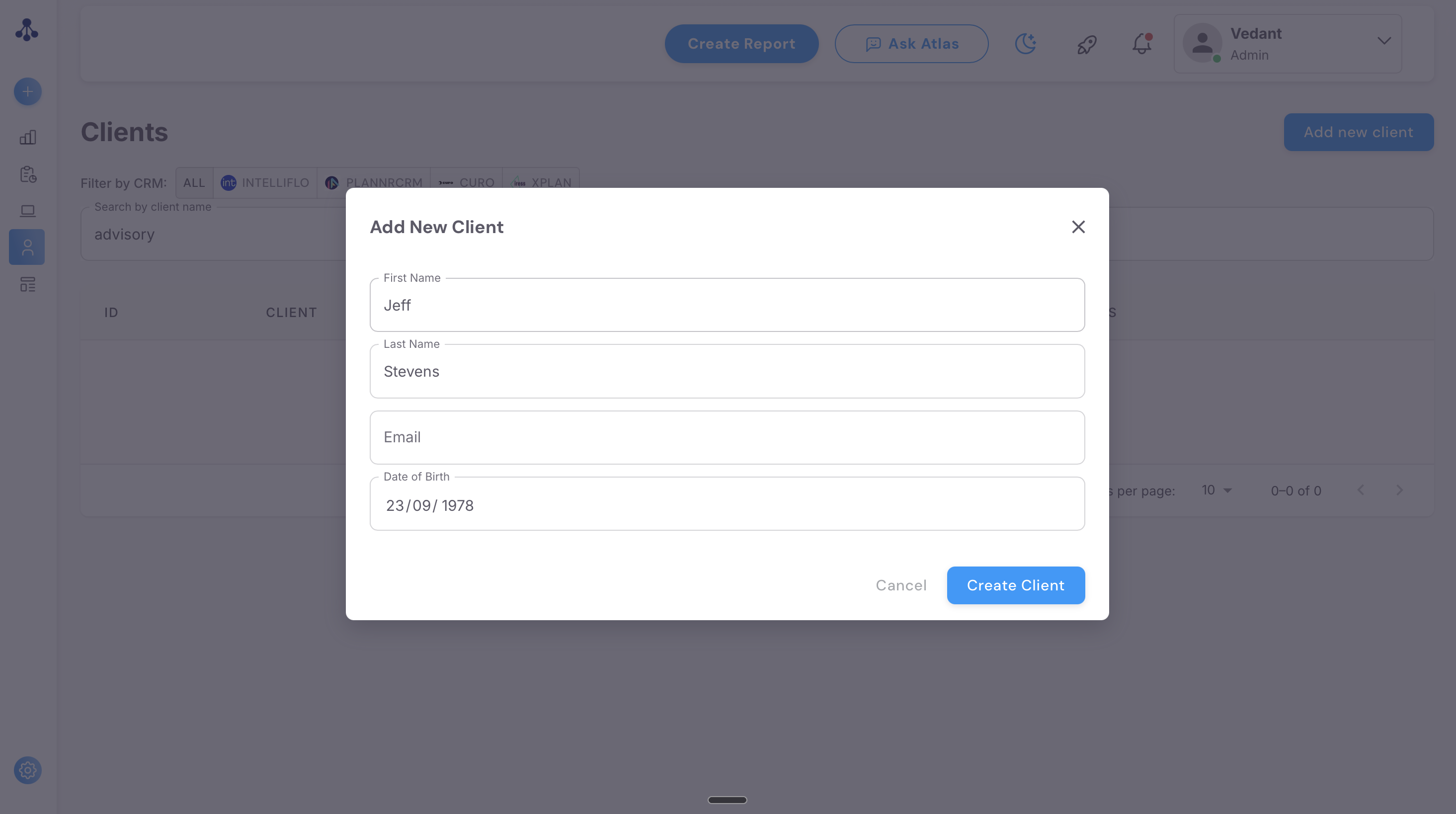
Once you create a client, it will show in the clients tab, and any meetings or documents associated with them will show up in this page
What if I have duplicate profiles for the same client?
A duplicate profile is when the same client ends up with more than one record in your Clients list on the platform.
Why it happens: most often it's a name or mismatch — for example, a client showing as "John Doe" in one meeting and "John D" in another, which stops the system from matching them to the existing record. It can also happen when a client is added manually despite already existing as a CRM-pulled record, or when a paraplanner pulls their own copy of a client instead of accessing them through the adviser's account.
How to fix it:
You can search past meetings for the client's name, find the one sitting under the wrong or duplicate profile, and reassign it to the correct client. Once every meeting is reassigned, delete the empty duplicate. Attach any reports to the correct client by uploading them as a document under their profile.
For a broader backlog of duplicates where reassigning them one by one isn't practical,, email support@advisoryai.com with the client names involved, and our team will merge them for you.