What File Formats Can I Upload?
Last updated: October 12, 2026
This article shows you which documents to upload for each report type, how to make sure Emma can find the recommendation, and which file formats work best. File formats have their own section near the end; the rest of the article is about what to upload and why.
Emma reads only the documents you select when you create the report. It does not pull data from the client profile, from earlier reports unless you select them, or from any external website. Precise beats plenty: a small set of current, relevant documents produces a more accurate report than everything you hold on the client.
Before you begin
Correct the meeting note before you use it. Generate the report from the corrected note, not the raw transcript, and leave the transcript unselected. See How to Clean your Meeting Transcript.
Make sure the recommendation, the destination and the costs are written down in one of the documents you will upload.
Remove password protection from any file before uploading; protected files are blocked across the platform.
Choose the documents for the report
Start with the core two or three documents: the corrected meeting note, the fact find and the risk assessment. These are the base for every Emma report.
Add the documents specific to the advice. Use the table below as a guide. It rarely takes more than about ten documents in total.
Include anything the report must quote. Fund charges and performance figures are not pulled in on their own; if they are not in an uploaded document, they will not appear.
Leave out documents for anything that is out of scope. The master template builds sections from what you upload, so an illustration for a product you are not recommending creates a section you do not want.
Report | Documents to add to the core set |
|---|---|
Meeting note | The recording or transcript only |
Fact find | The recording or transcript, plus the risk questionnaire to carry through the agreed risk profile |
Annual review | Performance information, cost and charges, cashflow models or projections, fund fact sheet |
Fund switch | Existing plan information (value, charges, features, penalties), cost and charges illustration, fact sheet, performance information |
Top-up | Illustration, cost and charges, fact sheet |
Withdrawal or drawdown | Projections or cashflow models, cost and charges |
LOA pack summary | The LOA response document from the provider |
The right mix varies case by case, so use your judgement: upload whatever you would review if you were writing the report by hand.
Make sure Emma can find the recommendation
Write the recommendation in the meeting note. The recommendation or next-steps section is where Emma looks first: what is being recommended, where it is going and what it costs.
Upload the illustration or quote for the target provider. It acts as supporting evidence, and an illustration for the new provider is usually enough to show where a consolidation is going.
Add a one-page statement if the note is ambiguous. A short Word document, or a voice note recorded as an ad-hoc meeting, stating the recommendation, the costs and the destination removes the guesswork.
Please note: the advice decision always stays with the adviser. Emma writes the rationale, and your template can limit which recommendation reasons it is allowed to use. If the report recommends something you did not advise, the recommendation was not stated clearly enough in the inputs.
Keep documents short
Stay under 100 pages per document. This is the tested limit; beyond it the output cannot be guaranteed, because the more input Emma is given the less reliable the output becomes. If a single document such as a 40-page fact find pushes a case over the limit, email support@advisoryai.com with a screenshot of the Create Report screen showing the documents and the message; the dev team can lift the limit for that case. Templates with section-to-document mapping are less affected, because each section reads only the sources it needs.
Upload only the relevant pages. If three pages of a 50-page document matter, extract those pages and upload them on their own.
Do not upload everything to be safe. Over-uploading causes confusion and errors, and is the most common reason a report comes out wrong.
Select the documents at generation
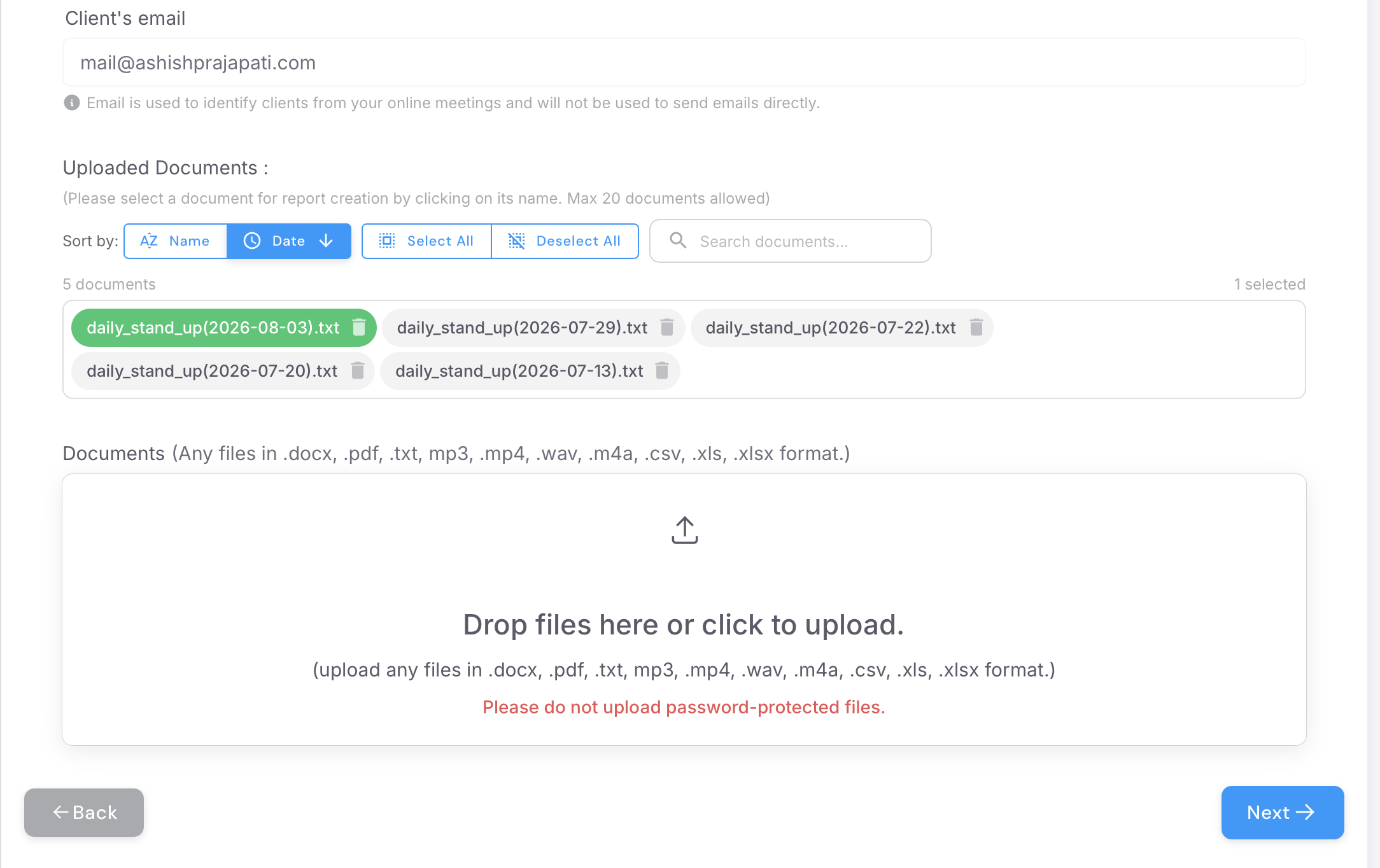
Click each document you want Emma to read. Selected documents show green. Anything left unselected is ignored, even if it is attached to the client.
Check that last year's report or fact find is selected if you want it used. Previously generated reports may appear as suggested documents, but they are only read when selected. See Reuse last year's report, and what the master template puts in each section.
Deselect the raw transcript when the corrected meeting note is in the list.
File formats
Emma and Evie accept DOCX, PDF, TXT, MP3, MP4, WAV, M4A, CSV, XLS and XLSX, and Outlook .msg email files. Scanned documents and handwriting are read. A recording or transcript from outside the platform, for example a meeting held before you started using AdvisoryAI or a call the notetaker did not join, can be uploaded in the same way: the agents work from whatever recording or transcript you give them, wherever it came from.
Atlas accepts PDF, DOCX, TXT, XLS, XLSX and CSV, up to ten documents per query with a combined limit of 30 MB. You do not need to select a client first: attach the file in the chat window and ask your question. This covers LOA packs, fact finds and any other document you want summarised, compared or queried.
Please note: Word and PDF read most reliably. Convert spreadsheets to PDF before uploading, because Excel is hard for Emma to read consistently. Screenshots (PNG, JPEG) and PowerPoint files are not accepted; convert them to PDF. If an .msg file is rejected, save the email as a PDF.
Risk profiles and risk wording
Emma does not produce attitude to risk assessments. The platform produces suitability letters and reviews; it does not run attitude to risk or client risk assessments, so keep your profiling tool for that. Upload the risk questionnaire or risk report from your profiling tool as an input. Your template can then select the wording for the client's risk category: a condition in the template says, for example, "if balanced, keep the balanced wording and drop the other four". Ask the build team to add this if your template does not do it yet.
Next steps
Generate the report and check the citations against your sources. See Emma Express : The new way to draft your reports.
If a figure is missing or wrong, check first that the document holding it was selected (green) at generation.
Related articles
Ready to generate? Open AdvisoryAI, click Create Report and select only the documents the case needs.