How to create your first report
Last updated: October 12, 2026
This article walks you through creating a report in AdvisoryAI, from choosing a template and client to downloading the finished Word or PDF file.
AdvisoryAI's agents turn a meeting or a set of documents into a finished report in minutes. Evie handles the meeting side: she records and transcribes client meetings and turns them into meeting notes, ad-hoc meeting notes, email summaries and fact finds. Emma handles the report side: she takes what Evie captured, plus illustrations, fact finds and letters of authority, and writes suitability reports, annual reviews, fund switch reports and LOA pack summaries. Every report is created the same way.
Before you begin
- Check your role. Advisers have Evie and create meeting-based reports (meeting notes, ad-hoc notes, email summaries). Paraplanners have Emma and create client reports (suitability reports, annual reviews, fund switch reports). Paraplanner+ users have both. See Licences and Roles Explained.
- Have the client's name and email ready if they are not in AdvisoryAI yet. A report must belong to a client record.
- Gather the input documents for the report type. Emma writes only from what you give her: if a detail is not in the documents you upload, it will not appear in the report, and extra or outdated documents add noise and can pull the report off course. See What File Formats Can I Upload?.
Create a report
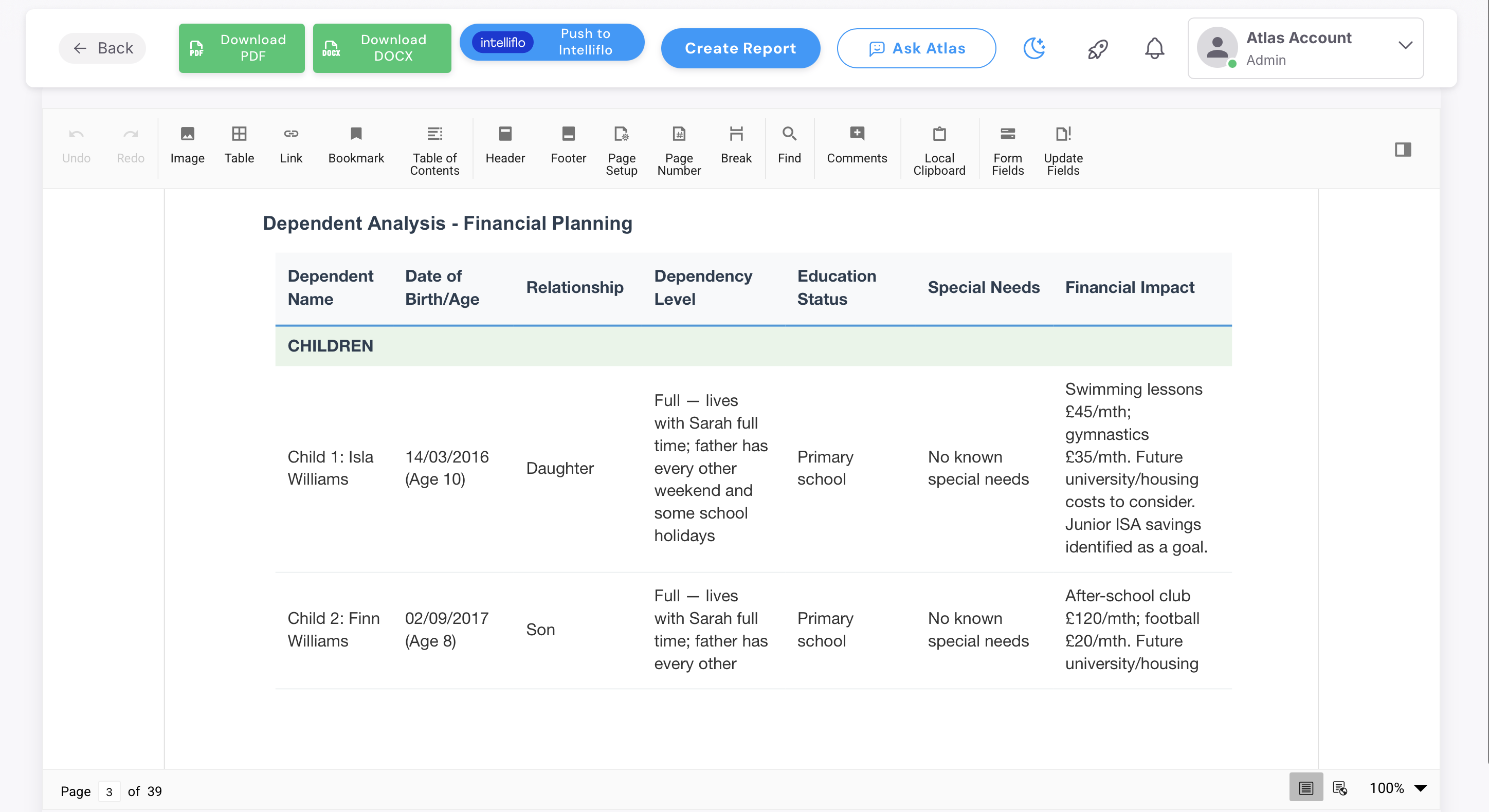
- Click Create Report at the top of the screen.
- Choose the type of report you want to create. The list shows every template available to you, standard and custom; if one you expect is missing, see Control access with groups.
- Select the client. Start typing the name and pick the client from the list. If you have just finished a meeting note, this is the quickest route to a report for that client: type the name here rather than looking for a shortcut on the note. To add someone new, use the add new client option and enter a name and email.
- Upload the documents for the report, or select documents that already exist on the client, usually meeting transcripts and notes generated through Evie. Drag and drop files in, or click the upload box to pull them from your device or SharePoint.
- Select the documents Emma should read. Selected documents show green; anything left unselected is ignored.
- Decide how Emma drafts it. Leave the Express toggle off to review a snapshot of each section before the report is written, or switch it on to go straight to the finished report with citations. See Emma Express : The new way to draft your reports.
- Click Next. With the snapshot flow, check and adjust each section, then generate the report.
Please note: you must pick an existing client or add a new one with a name and email before uploading documents. This stops reports being created against clients with odd or incomplete names. If the same person now appears twice in your Clients list, see Find and merge duplicate clients.
Review and download
- Edit the report in the platform. You can change any section once it is generated, and regenerate a section that missed a document.
- Download it as a PDF or Word document using the buttons in the top right. This is your finished report.
Upload your own documents
You do not need a recording made through AdvisoryAI to generate a report. If you already have a transcript, fact find or set of documents, for example from a meeting held before you started using the platform, upload them at step 4 in the same way as anything generated in the app.
Which reports can you create?
- Meeting note and ad-hoc meeting note
- Email summary
- Fact find
- Suitability report, including the targeted top-up, withdrawal and fund switch versions
- Annual review
- LOA pack summary
A standard top-up recommendation template exists, so a report for each contribution or top-up is generated from the illustration, the risk profile assessment and the fact find in the usual way.
Matching reports to your firm
Report templates can be set up to match your firm in one of two ways. White label applies your branding, logo, colours and fonts to Emma's standard report structure. Bespoke goes further and rebuilds your firm's own report structure, wording and logic, so the output matches what you already produce. If your firm wants either, email support@advisoryai.com and the sales team will get in touch to talk through the options. See Custom report templates: what to send, how changes work, and giving feedback.
See it in action
In the example below, we show you how you to create a Fact Find, but you can use the same process to make any
Next steps
- Read What File Formats Can I Upload? before your first suitability report, so the inputs match the template.
- If a colleague sees no templates at all on the Create Report screen, email support@advisoryai.com with their name and your firm.
Related articles
- What File Formats Can I Upload?
- Emma Express : The new way to draft your reports
- Control access with groups
- Create Your First Meeting Note
Ready to create your first report? Open AdvisoryAI and click Create Report at the top of the screen.