Atlas Documents: uploads and screenshots saved to the client
Last updated: October 12, 2026
This article explains what happens to files you give Atlas in a chat, where to find them afterwards, and how to use them again when you create a report.
Anything you upload in an Atlas chat is now kept. Tag the client before you send, and the file is saved to that client's documents alongside everything pulled from your back office system. Images count too, so a photo of handwritten notes or a screenshot of a provider portal becomes part of the client's record.
Before you begin
- Supported files: PDF, Word, Excel, plain text, and images in PNG, JPG, JPEG or WEBP format.
- Each file can be up to 30 MB, and you can attach up to 10 files to one message.
- Decide which client the file belongs to. A file sent without a client selected stays visible only to you and cannot be moved to a client later.
Upload a file in Atlas
- Open Atlas from New Chat in the left-hand menu.
- Click Select Client below the message box and choose the client. Typing a name in the message is not enough; the client has to be picked from the list for the file to be saved to them.
- Attach the file. Click the paperclip and choose it, or drag it onto the chat. Images show a thumbnail; documents show their name.
- Type what you want Atlas to do with it, for example "Summarise these notes and add any actions to the client's open items", and send.
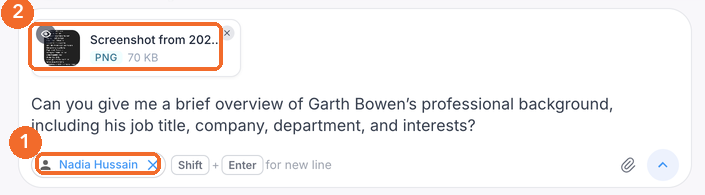
Atlas reads the file, including handwriting and text inside images, and answers. The file is saved to the client at the same time.
Please note: the same file sent in two different chats is stored twice. Within one chat, a file you have already sent cannot be added again.
Find everything you have uploaded
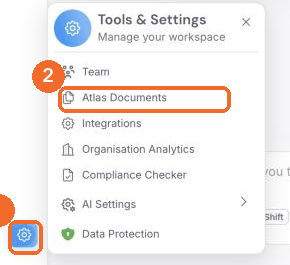
- Click the gear icon in the bottom left corner to open Tools & Settings.
- Select Atlas Documents.
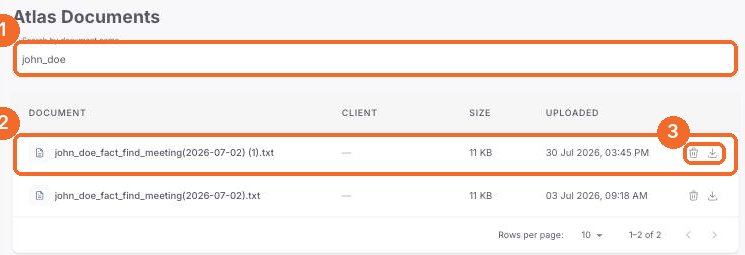
- The page lists every file you have uploaded through Atlas, tagged or untagged, with the client, size and upload date. Search by document name, or click a column heading to sort.
- At the end of each row, the bin icon deletes the file and the download icon saves a copy to your device.
This page lists your own uploads. A file you tagged to a client also appears on that client's record, where any colleague with access to the client can open it. A colleague's untagged uploads never appear for you, and yours never appear for them.
See the file on the client's record
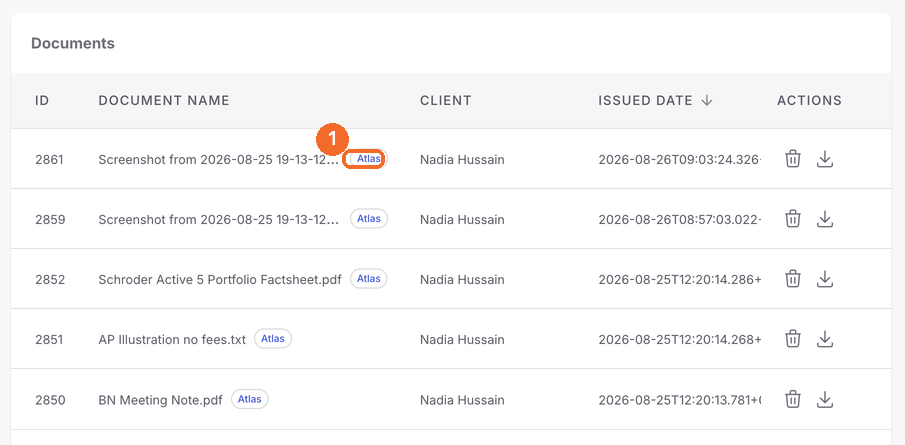
Open the client from Clients and choose the Documents tab. Files that came in through Atlas carry an Atlas label next to the document name, so you can tell them apart from documents pulled from your back office system or attached from SharePoint.
Deleting a client, or processing an erasure request, removes Atlas uploads along with the rest of that client's documents.
Use an image as a source for a report
Images you have uploaded can be selected as source material when you create a report, in the same way as a PDF. On the Add Client Information step, pick the client, then choose the image from their documents. When Atlas cites an image in an answer or a report, clicking the citation opens the image itself rather than a page reference.
Also asked
Does Atlas read the reports Emma has already written for a client?
Yes. Atlas reads the client's generated reports as well as their transcripts and uploaded documents, so you can ask what a past suitability report recommended or have a report revised from the Atlas chat.
Can Atlas read our back office data and documents without me uploading them?
Yes, for clients synced from your back office system. Atlas reads the field set the integration exposes (personal details, review dates, risk profile and portfolio values) and the documents stored against the client there. A back office document has to be pulled into AdvisoryAI before Atlas can read it in full: tick it when you create a report, or accept the prompt to download it when Atlas needs it. The file name must carry a proper extension, and fields your back office does not expose, such as expenditure and free-text notes, do not come through. See What information can Atlas read from your back-office system?.
Can Atlas run a report on a schedule, or send me documents on a set day?
Not at the moment. Atlas runs when you ask it, so a weekly check such as a vulnerability review across your clients has to be started by someone each time. Atlas also has no access to the web or to provider portals, so anything outside the platform has to be given to it as a file. If you want a particular task to run on a schedule, email support@advisoryai.com with the task and how often you need it; the team passes it to the product team and replies with where it sits in the plan.
Can Atlas prepare a pre-meeting summary from a spreadsheet of performance and charges?
Yes. Select the client, attach the spreadsheet with the paperclip and ask Atlas to prepare for the meeting using it. A test of this returned a client overview, an income summary, portfolio performance, the investments held, and fees and charges. If the workbook has an input tab and an output tab, say in the prompt which tab to read, or save the output tab alone as a PDF and attach that, so the input figures never reach Atlas.
Can I upload several plans to the LOA summary and get one comparison table?
You can upload several plans to the LOA summary, but the combined table does not lay out well in the Word editor. Run the LOA summary for each plan first, then select the client in Atlas and ask it to build a table across the plans, naming the columns you want.
Can Atlas edit a report, and does the original disappear?
Yes, a report can be revised from the Atlas chat, and the report pane shows the revised version. The original does not disappear: the report stays in the Reports section and the changes Atlas made are saved alongside it.
Can Atlas read our SharePoint files in detail, or only at a high level?
Atlas searches SharePoint at a high level, in the same way as the Outlook connection: enough to find a document, spot duplicates and surface misfiled files. For a detailed question about what a document says, bring it into AdvisoryAI first by attaching it in the chat with the client selected, so Atlas reads the full text.
Can I give Atlas my standard client note structure so every new call uses it?
Attach your existing note and the new transcript together, select the client, and ask Atlas to rewrite the note in the same structure using the new information. Atlas memory holds formatting preferences, not whole documents, so the structure has to be attached each time you want it followed. See Atlas Memory: Customising and Remembering Output.
Can we upload our own template with the call notes to generate a suitability report?
Yes. There is no restriction on AdvisoryAI's side; working from your own template inside Atlas is what it is designed for, subject to your firm's own policy on how client data is handled. Keep the work inside the platform rather than copying client data out to other tools.
Can Atlas handle a 20-page transaction history to work out past adviser charges?
Yes. A 20-page document is well within the limits: 30 MB per file, and a single document can run to around 100 pages. Attach the history with the client selected and ask for the adviser charges by date and the total. Atlas does not guarantee arithmetic, so check the figures against the citations before you rely on them.
Can I ask Atlas to change the font or alignment of a document?
Partly. Atlas can change heading colours, turn a section into a table and align a table. Font changes have not been tested, so for a specific font copy the output into Word and set it there; the formatting you set in Atlas carries across.
Next steps
- Try it with the next LOA response or provider letter you receive: tag the client, drop in the PDF, and ask Atlas to summarise it.
- For what Atlas reads from your back office system without an upload, see the article below.
Related articles
Try it now. Open AdvisoryAI, start a chat, select a client and drop in a screenshot.