Connect Intelliflo and sync your clients in batches
Last updated: October 12, 2026
This article shows you how to connect AdvisoryAI to Intelliflo and bring your whole client list across, so Atlas, Evie and Emma have every client on file without you adding them one at a time.
Once connected, AdvisoryAI pulls your clients from Intelliflo in daily batches. The import runs on its own and shows you how far it has got.
Before you begin
You need your Intelliflo login. The connection is made on Intelliflo's own sign-in page, and AdvisoryAI never sees your password.
Check with the person who administers Intelliflo at your firm that your user has access to the clients you expect to sync. AdvisoryAI can only pull what your Intelliflo login can see.
Know roughly how many clients your firm holds, so you can sanity-check the count AdvisoryAI shows you.
Connect Intelliflo
Click the gear icon in the bottom left corner to open Tools & Settings, then select Integrations.
Scroll to Third-Party Integrations and click Connect on the Intelliflo card.
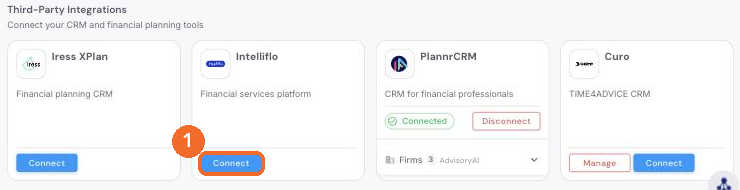
Sign in on Intelliflo's page with your usual Intelliflo credentials and approve the connection. You are returned to AdvisoryAI, and the Intelliflo card now shows Connected.
Please note: if the card ever shows Your Intelliflo connection has expired, click Reconnect and sign in again. Your synced clients are kept; only the link needs refreshing.
Start the sync
Once connected, the Intelliflo card shows how many of your Intelliflo clients are already in AdvisoryAI and how many are still to come, for example 8 of 543 clients synced, 535 still in Intelliflo. Two buttons sit under the count:
Sync [N] clients brings every remaining client across in daily batches.
Choose clients lets you pick who comes across.
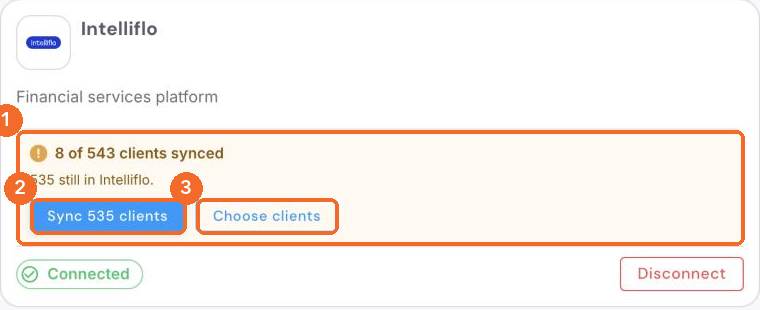
To bring everyone across, click Sync [N] clients. The first batch starts straight away and the rest follow each day until the list is complete.
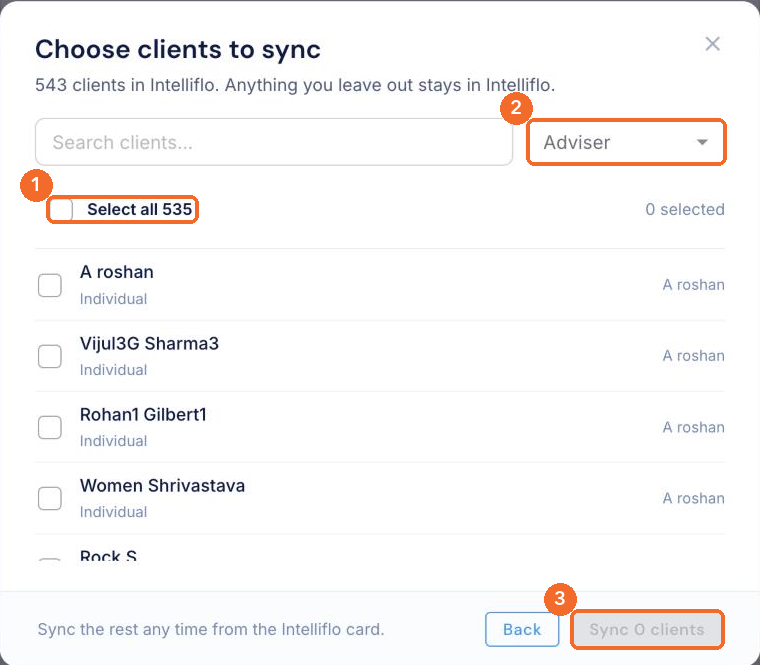
To pick clients instead, click Choose clients. The Choose clients to sync window lists everyone still in Intelliflo. Search by name, filter by Adviser, tick the clients you want or Select all, then click Sync [N] clients. Anything you leave out stays in Intelliflo, and you can sync the rest any time from the Intelliflo card.
Follow the progress
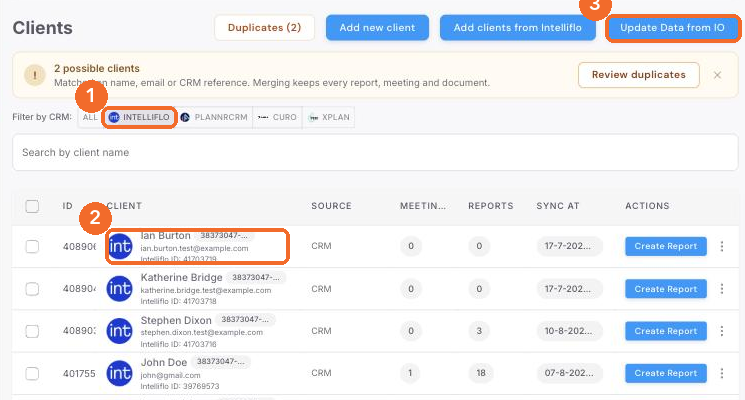
Open Clients and click Intelliflo under Filter by CRM. Each synced client shows the Intelliflo icon next to their name, their Intelliflo ID, and the date in Sync At. The count on the Intelliflo card updates as each batch lands.
Update Data from IO at the top of the Clients page refreshes clients you already have with whatever changed in Intelliflo since they were last synced.
Please note: the batch sync brings across a set number of clients each day for each user, so a firm of several hundred clients takes a few days to finish. Adding a single client by name or reference is not capped. You can use the clients that have already arrived while the rest come through. Documents stored against a client in Intelliflo come across too, provided the file name has its extension.
Also asked
Do I have to add every client one by one, or can I bulk import from Intelliflo?
You no longer have to add clients one at a time. Sync [N] clients on the Intelliflo card brings everyone across in daily batches, and Choose clients lets you pick a set. Adding a single client by name or reference from the Clients page still works alongside the batch sync. Clients created automatically from calendar invitations are not linked to Intelliflo, so pull the clients you are meeting from Intelliflo rather than relying on the invitation to create them.
A colleague followed all the steps but her Outlook meetings are not syncing
The calendar connection is separate from the Intelliflo connection. It is made under Tools & Settings, then Integrations, where Outlook is listed alongside Google Calendar, and it reads the calendar only. Check that the account she connected is the one her meetings are booked in, and that its sign-in email matches her AdvisoryAI login. If the meetings still do not show, email support@advisoryai.com with her AdvisoryAI login email, which calendar she connected and a screenshot of the Integrations page; the team checks the calendar connection on her account, because an expired or mismatched connection is only visible from the back end. See Integrating with your Calendar below.
Why does the annual review template pull every product from the fact find when our advice covers one product?
The annual review template is built to review everything on the fact find, so it brings every plan into the report. The top up template is built for transactional business and covers the product being advised on. Both are base templates; a custom template for your firm can add sections such as objectives to the transactional version. See Custom report templates below.
If we upload plan information to Intelliflo, can the platform pull that policy information through?
Yes. Plans and valuations held on the client's Intelliflo record come across with the sync, and Atlas can read them and use them in generated output such as a pre-meeting brief. The push back to Intelliflo writes hard facts, including assets, into the fact find; do not use the push to maintain plan records in Intelliflo.
Does the integration put data in the right place, or do other firms find gaps?
The integration pushes the hard facts, around 80 to 90 fields, into the Intelliflo fact find. It does not push free text: employment notes, the freeform text on each fact find tab and other notes fields stay in the report, so those still need typing into Intelliflo by hand. See Creating a Report and Pushing Data to IO below for the full list of what goes across.
Do you expose a suite of APIs so we can pull data out of your system?
There is no self-serve public API suite today. Email support@advisoryai.com with the data you want to pull out and the system it needs to land in; the team shares the current integration documentation and confirms what is available, because access is set up per firm rather than switched on from the app.
Why can the sync not find a client even though I typed the name exactly as it appears?
Search by the Intelliflo reference number instead of the name. Check too that the record is a client in Intelliflo rather than a prospect or a company, because the integration does not cover corporate clients. If the reference search also finds nothing, email support@advisoryai.com with a screenshot of the search and the reference; the team checks the record against the integration.
A lot of the wording looks like our existing report software. Is it built on that?
No. Any similarity is coincidental. The models are trained on worked examples and on the FCA handbooks such as COBS and SYSC, not on other report-writing software.
A diary entry names several people, and past meetings do not match the right client
Meetings are matched to clients on the email address, not the name, so a client pulled from Intelliflo with the same email as the invitation attendee matches correctly. In your upcoming or past meetings you can edit who the meeting is with, and a client that was created from the wrong address can be deleted. See Integrating with your Calendar below.
Why should we make edits in the platform rather than in a downloaded Word document?
Edits made in the platform are visible to AdvisoryAI, so a change you make repeatedly shapes future output for your firm. Once a report is exported to Word, changes made there are invisible to the system and the next report repeats the same thing.
If we upload LOA documents to the client's folder in Intelliflo, will the platform read them automatically?
Not automatically. When you create a report for a client linked to Intelliflo, the documents section lists every document saved on their Intelliflo record alongside every document created in AdvisoryAI. Select the ones you want read, and they download into AdvisoryAI at that point. Anything that is not in Intelliflo can be dragged and dropped into the upload area in the same step. The Intelliflo file name must end in its extension, otherwise it is not listed.
Can I pull trust entities through from Intelliflo?
Not yet. The integration covers individual client records, so a trust does not appear when you search by name or reference. In the meantime, set the trust up as a client in AdvisoryAI under the trust's name, download its documents from Intelliflo and drag and drop them into the report together.
Next steps
Once the sync has finished, open the Duplicates view on the Clients page. A client who already existed in AdvisoryAI under a different email can now be merged with the Intelliflo record.
To send fact-find data back into Intelliflo after a meeting, see Creating a Report and Pushing Data to IO below.
Related articles
Pulling client data from IO, which covers adding a single client by name or reference. That still works alongside the batch sync.
Find and merge duplicate clients
Custom report templates: what to send, how changes work, and giving feedback
Ready to connect? Open AdvisoryAI, go to Tools & Settings, then Integrations.