Post-meeting processing in Atlas
Last updated: October 12, 2026
This article explains what Atlas does once a recorded client meeting ends, how to check who said what, and how to have the meeting note written straight away or every time for that client.
After a meeting, Atlas processes the transcript on its own and places a Meeting note item under Ready for you on the Atlas home page. From there you confirm the speakers, choose the template, and let Atlas write the note. You no longer need to open the meeting, clean the transcript and generate the note in separate places.
Before you begin
- The meeting must have been recorded with Evie and attached to a client. Meetings without a client do not appear under Ready for you.
- Meeting note items appear for meetings recorded after post-meeting processing was switched on for your firm. Earlier meetings keep their Email summary item, so you see the new flow from your next recorded meeting.
- Decide which meeting note template you want for this client. Firms with a custom template will see it in the list alongside the standard ones.
- If a third person was on the call, such as a partner, adviser colleague or accountant, have their name ready so you can tag them.
Open the processed meeting
- Open Atlas from New Chat in the left-hand menu.
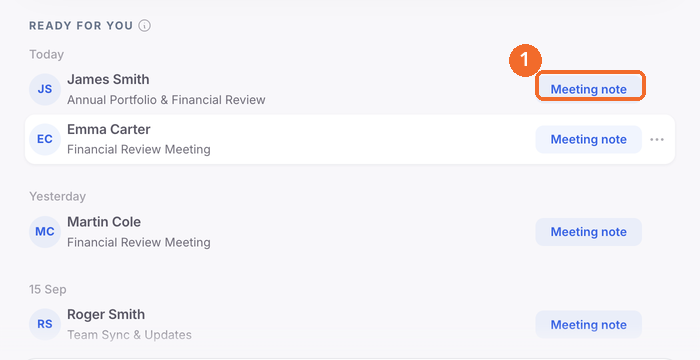
- Under Ready for you, find the meeting and click Meeting note. Items are listed by date with the client's name and the meeting title.
- A chat opens headed Post-meeting run for that client. The card lists the steps in order: Transcript, then Create the meeting note. A green tick shows which steps have run.
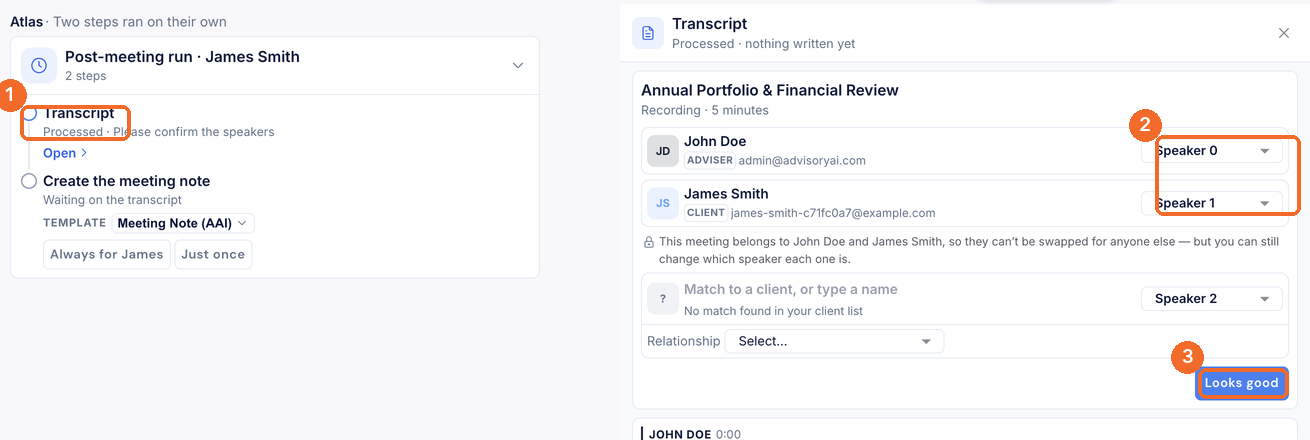
- The transcript opens on the right-hand side. If the second step still says Waiting on the transcript, confirm the speakers first (next section) and it moves on. Click Open on any step to bring its content back into the right-hand pane.
Confirm the speakers
- In the Transcript pane, each person Atlas detected has a row with a Speaker dropdown. You and the client are matched automatically from the meeting booking and cannot be swapped for anyone else, but you can change which speaker label each of you has.
- For anyone else on the call, click Match to a client, or type a name. Pick a client from your list, choose a colleague from your firm, or add the person as a temporary name for this transcript only.
- Choose their Relationship to the client from the dropdown.
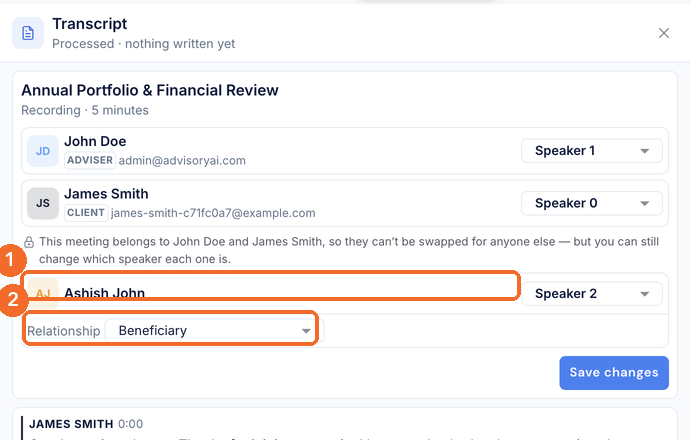
- Read a few lines of the transcript to check the names are on the right lines. If everything is correct, click Looks good. If you changed anything, click Save changes. The Transcript step is then marked complete.
Please note: getting the speakers right here matters. The meeting note, and anything else built from this transcript, uses these names.
Create the meeting note
- On the Create the meeting note step, check the Template. Click it to choose a different one, including your firm's custom templates.
- Choose how to run it:
- Just once writes the note for this meeting only. Atlas asks again after the next meeting with this client.
- Always for [client] writes this note now and saves the choice for that client. After future meetings, the note is ready by the time you open the Post-meeting run, using the same template.
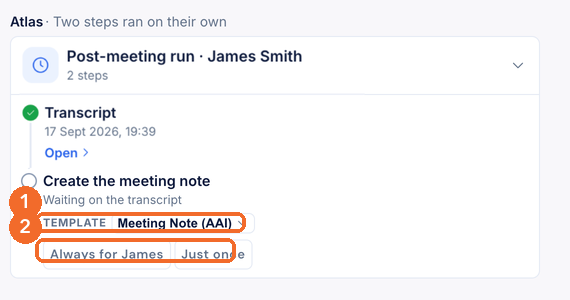
- The step shows Writing the note while Atlas works. When it finishes, the note appears on the step with the date it was written. Click Open to read it in the editor on the right. It is also saved in Reports.
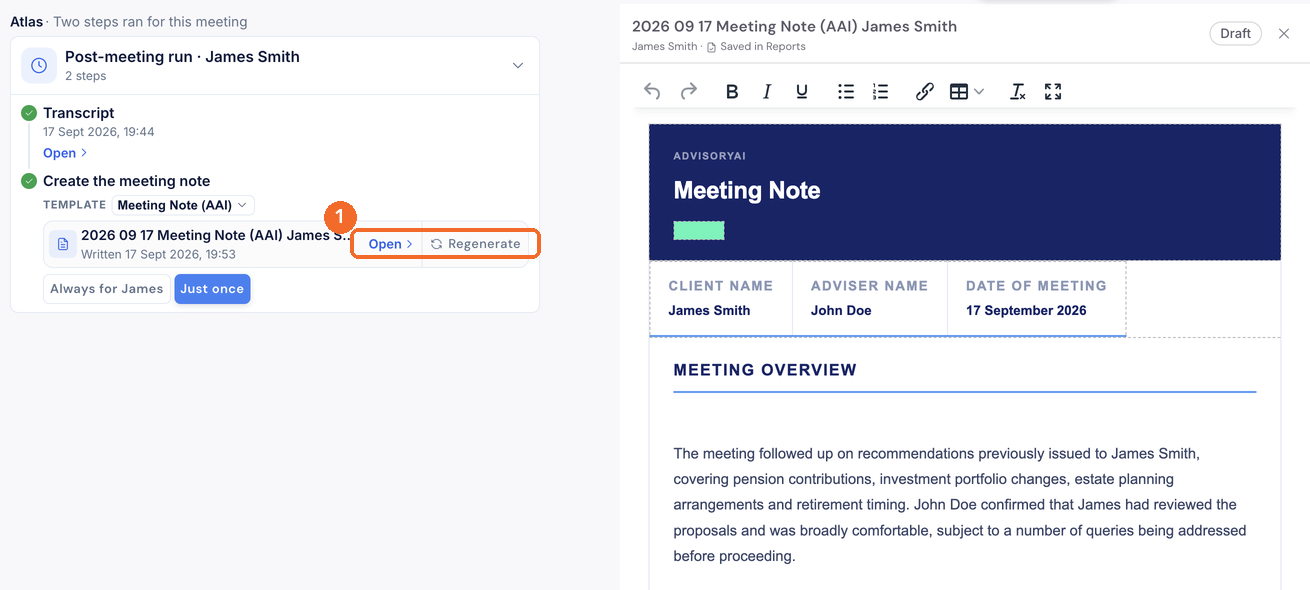
Your choice stays visible on the step afterwards, so you can see whether a client is set to always run. To change it, pick the other option on that client's next Post-meeting run.
Rewrite the note
If the note is not right, fix the cause first, then regenerate:
- Change the speaker names in the Transcript pane and save, or choose a different template on the Create the meeting note step.
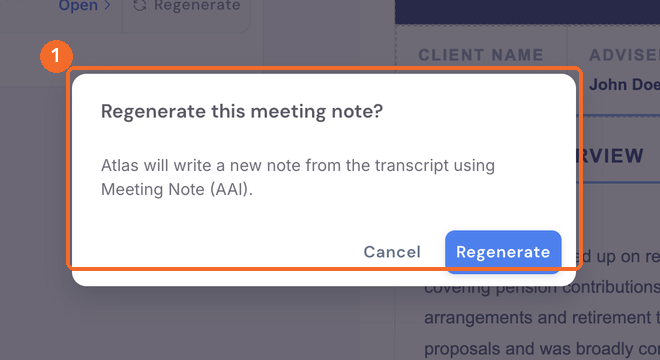
- Click Regenerate on the note. Atlas confirms which template it will use.
- Click Regenerate in the confirmation. The step shows Rewriting the note and the new version replaces the old one.
Also asked
Can I ask Atlas for a meeting note in a chat instead?
Yes. Start a new chat, name or select the client, and ask for a meeting note on the latest meeting. A note written this way uses Atlas's wider reasoning, so the prose and the context around each point often read better, and the layout can vary from one note to the next. The Create the meeting note step and the Evie templates apply the same fixed structure every time and capture the client's exact words more reliably, so use the template route when your firm needs the same layout on every note.
Why does the meeting note pull in earlier conversations and the fact find, not just this meeting?
Nothing has changed in how notes are built. This happens when more than one transcript was added as context when the note was generated, or when the note was requested from the Atlas home page, which by default draws on everything held for that client. To keep the note to one meeting, ask from the Post-meeting run for that meeting, or tell Atlas to base the note on the meeting of a given date only and to weight the recent transcript. You can also ask it to limit the length.
The email summary after a meeting is too thin. How do I get more detail?
In the Atlas chat where the summary was generated, ask for a more detailed version and name what it should include, for example the figures discussed and each action with its owner. Then ask Atlas to remember that you want that level of detail in email summaries, so future summaries carry it without being asked. See Atlas Memory: Customising and Remembering Output.
Can Atlas help with business management work, such as policy updates, board meeting notes and MI?
Yes, for anything you give it. Atlas answers questions that are not about a client, so attach the policy document or the transcript of the board meeting without selecting a client and ask for the update or the note. For management information about your client book, such as meeting volumes or how many clients have no review booked, ask the question across your book from a new chat. If you want worked examples from other firms, email support@advisoryai.com with the documents you produce and how often; the team shares examples of how firms have set this up.
Where does the management information sit for compliance scores on meeting notes?
There is no management view that shows compliance scores or recurring fails by adviser across the firm; each score sits with the note it was given on. Email support@advisoryai.com with the view you need, for example recurring fails by adviser each month, so the team can log the request with the product team, who decide what goes into the next stage of the compliance check.
Next steps
- Once the note exists, ask Atlas in the same chat for the client email summary. The article below shows how.
Related articles
Try it after your next meeting. Open AdvisoryAI and look under Ready for you.