Adjusting the Tone of Your Meeting Notes
Last updated: August 3, 2026
Evie's Tone Settings let you control how your meeting notes are written — from the language and perspective used, to the level of formality. If your notes don't sound quite right, this is the place to fix it.
How to Update Your Tone
Click the settings icon in the bottom-left of your screen
Click on AI Settings and then Tone settings.
Type in your preferred tone instruction and save
You can write your instruction in plain English — just describe how you'd like your notes to sound.
⚠ Important: Tone is set at the individual user level. Each adviser manages their own settings independently.
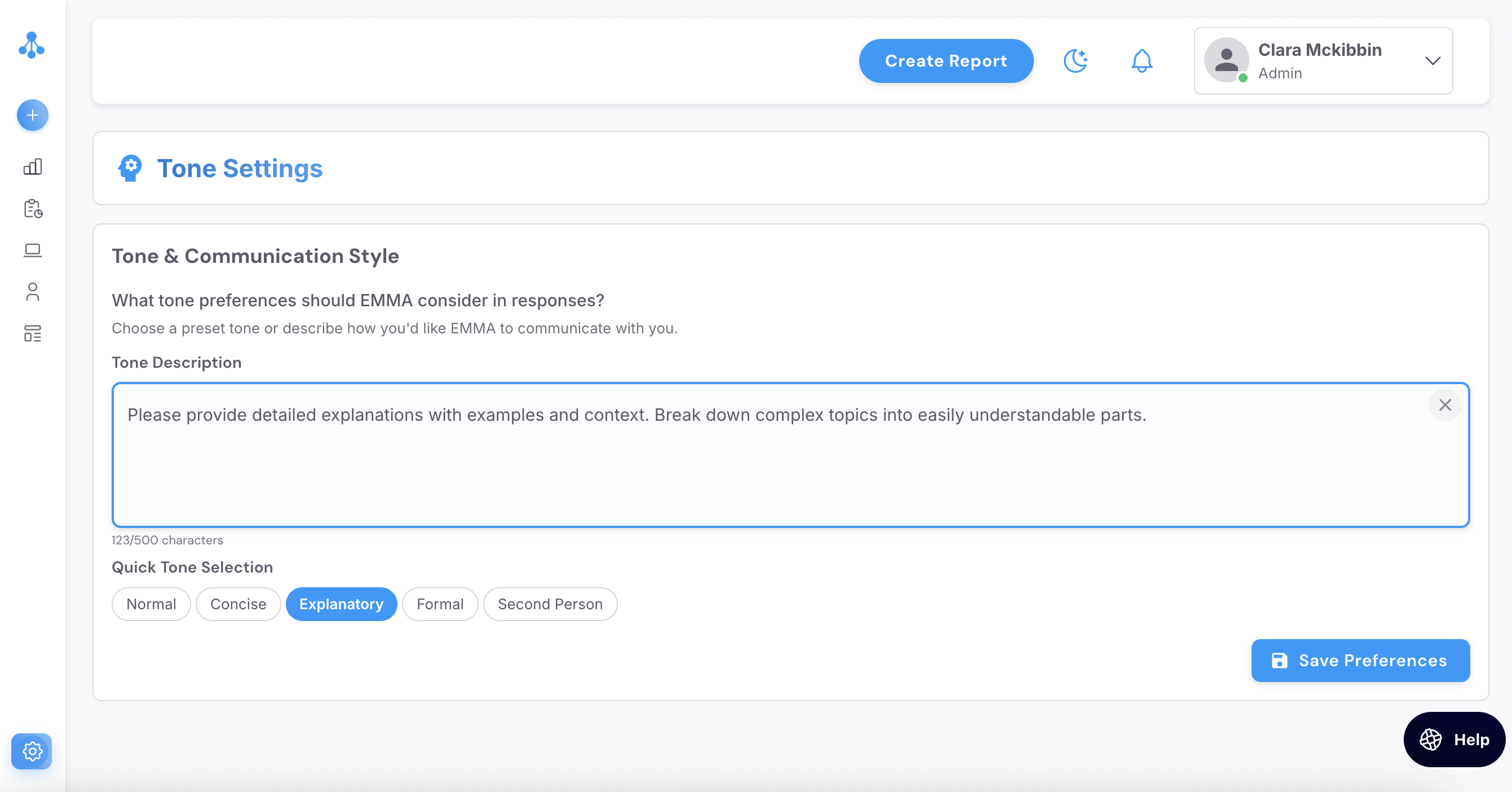
How to Update Your Tone
There are two ways to set your tone preference:
Option 1 — Quick Tone Selection Click one of the preset options at the bottom of the screen. Selecting a preset will automatically fill the Tone Description box with the corresponding instruction. The available presets are:
Normal
Concise
Explanatory
Formal
Second Person
Option 2 — Write Your Own Type a custom instruction directly into the Tone Description box. You can write this in plain English — just describe how you'd like your notes to sound. You have up to 500 characters.
Once you're happy with your selection, click Save Preferences.
Example Custom Instruction
If you want your notes written from your personal perspective rather than on behalf of the firm:
"Write in a professional tone at all times. Always write meeting notes from the perspective of the individual adviser. Use first-person pronouns like I, me, and my, rather than we, us, or our."