Adjusting the Tone of Your Meeting Notes
Last updated: October 12, 2026
This article shows you how to change the way your meeting notes are written, how to stop words and spellings you do not want, and what the platform does and does not learn from your edits.
Tone Settings control the language and perspective of your notes, from the pronouns used to the level of formality. Tone changes style, not content or structure: the sections of a note and the facts in it stay the same. If your notes do not sound quite right, this is the place to fix it.
Before you begin
Tone is set for each user. Every adviser manages their own settings, so a change you make does not alter a colleague's notes. A firm-level master control is available on request through support@advisoryai.com.
The Dictionary is shared across the firm and needs admin access to edit.
Have an example of a note that sounds wrong to hand, so you can name the exact habit you want to change.
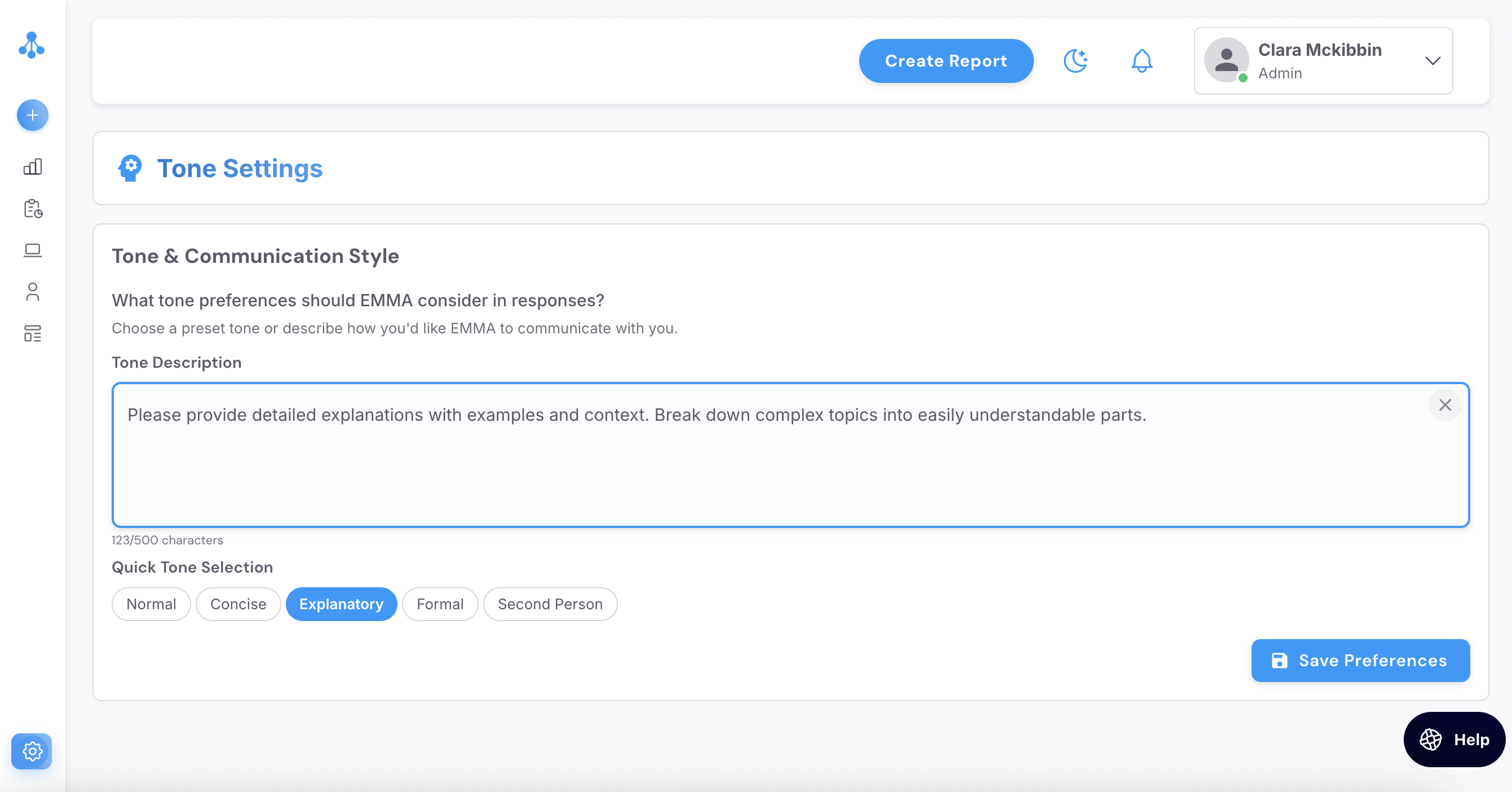
Update your tone
Click the settings icon in the bottom left of your screen.
Click AI Settings, then Tone settings.
Set your preference in one of two ways. Click a preset at the bottom of the screen, which fills the Tone Description box with the matching instruction, or type your own instruction into the box in plain English. The presets are Normal, Concise, Explanatory, Formal and Second Person. Your own instruction can run to 500 characters.
Click Save Preferences.
Write the instruction the way you would brief a new paraplanner. For notes written from your own perspective rather than the firm's, this works:
"Write in a professional tone at all times. Always write meeting notes from the perspective of the individual adviser. Use first-person pronouns like I, me, and my, rather than we, us, or our."
To cut a word the notes overuse, name it. For example: "Do not use approximately, significantly or other emphasisers. State the figure or the point plainly." To apply the same rule to everyone's notes, ask support to write it into your firm's meeting note template.
Please note: a model update has occasionally reset tone settings. If your notes revert to an old style, open Tone settings, check the instruction is still there and save it again.
If the notes sound like AI rather than you
The platform learns your voice from your own transcripts, so notes sound more like you the more meetings you run through it. To skip that warm-up, describe how you speak in the Tone Description box: the phrases you use, how formal you are with clients, and how you sign off. A preference that will not hold through tone, such as a fixed way of naming products or the firm, can be written into your template instead; ask support.
The Second Person preset keeps your notes in "you" and "your" throughout. For a report, that consistency comes from the template rather than from tone, so email support@advisoryai.com with the template name, the report ID and an example of the inconsistency; the team writes the second-person rule into the template so it holds on every report, and replies when it is live.
Fix names and terms the notes keep getting wrong
Tone does not correct spelling. If a fund house, an acronym, a piece of firm jargon or an unusual client surname comes out wrong in note after note, add it to the Dictionary.
Click the settings icon, then AI Settings.
Open the Dictionary. You need admin access for this step.
Add the term with its correct spelling and save. The spelling is learned permanently for the whole firm.
Please note: a name with more than one valid spelling, such as Stephen and Steven, cannot be trained through the Dictionary because the audio does not say which is right. For a one-off note, use a select-all prompt that corrects the name and it changes across the whole document. For the full set of Dictionary tips, see Building Your Firm's Dictionary.
What the platform learns from, and what it does not
Edits you make inside a note are not remembered. The same goes for instructions you type into Message Evie: they change that note only, because the prompt sees the transcript and nothing else. The routes that do change future notes are the Tone settings above, the Dictionary, report feedback, and a marked-up example sent to support so the team can bake the instruction into your template. Errors that recur across many firms are fixed centrally in model updates.
Downloaded documents are written in British English. The output layer maps US spelling to British English before you see it. If Word marks a downloaded note as US English, that is the document's proofing language rather than the spelling in the text. Email support@advisoryai.com with the file and a screenshot of the Word language setting; the team checks whether the proofing language is being set on export and replies with the fix.
Next steps
Run your next meeting through the platform and compare the note against the old one. Tighten the instruction if a habit survived.
If the same correction keeps coming back after tone and Dictionary changes, send support a marked-up example so it goes into your template.
Related articles
Ready to change your tone? Open AdvisoryAI, click the settings icon and go to AI Settings.