Create Your First Meeting Note
Last updated: August 5, 2026
Report generation is where Evie saves you the most time. This section walks you through the complete process of creating a professional meeting note from your recorded conversation.
Steps to Create Your Report
1. Locate Your Meeting
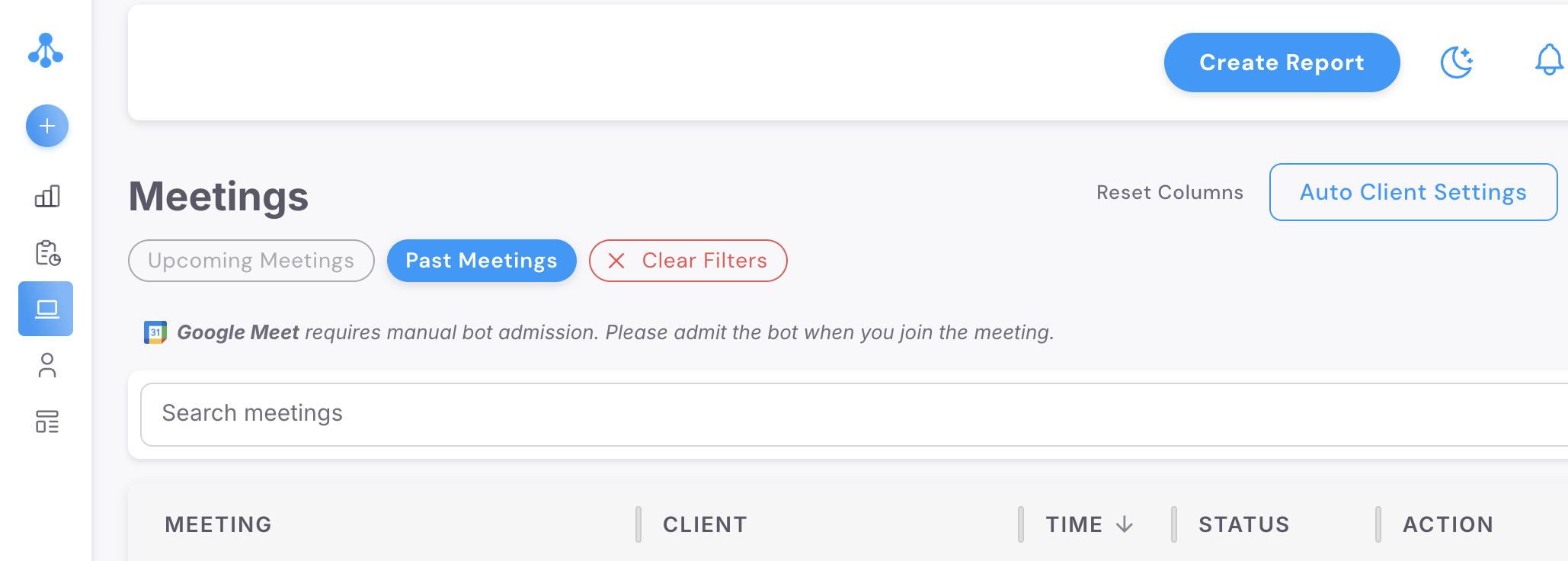
Navigate to the Meetings tab and click on "Past Meetings". Find the meeting you want to create a report for. Meetings that have been successfully recorded will show a "Done" status with a "Create Report" button next to them.
2. Click Create Report
Click the "Create Report" button next to the relevant meeting. This opens the report template selection screen where you choose how you want your report structured.

3. Choose Your Report Template
Evie offers three report templates, each designed for different purposes:
Ad-hoc Meeting Note: Best for general, informal meetings. This template structures your meeting notes into categories tailored to the specific conversation. Use this when you need quick, flexible documentation without rigid formatting.
Meeting Note: The most formal and detailed option. This template provides a comprehensive, structured format suitable for compliance records and detailed client files. Use this for important client reviews, advice meetings, or any meeting requiring thorough documentation.
Email Summary: Formatted as an email ready to send to the client. This template creates a client-friendly summary you can copy into PFP Messenger or your email client. Use this when you need to send a follow-up communication to the client.
4. Generate the Report
After selecting your template, click "Next". Evie will analyse the meeting transcript and generate your report. This process typically takes around 30 seconds. Once complete, the report appears on screen in an editable format.
5. Review and Edit
Review the generated report carefully. While Evie is highly accurate, you should check that all key points are captured correctly and the tone matches your preferences. You can edit any text directly in the report editor.
You can also use the "Message Evie" feature (covered in the next section) to request changes using natural language.
6. Download Your Report
Once you are satisfied with the report, use the download buttons in the top right corner of the page. You can download the report as a PDF document or as a Word document, depending on your preference and filing requirements.