Logging In: Setting Up Your Account and Two-Factor Authentication
Last updated: August 4, 2026
So your organisation has partnered with AdvisoryAI and you've been invited to the platform as a user. Welcome to the new era of financial advice! Watch as our AI agents save you hours every week preparing for your meetings or writing reports.
This is your guide to setting up your AdvisoryAI account for the first time, and adding two-factor authentication to keep it secure.
Setting Up Your Account
When your organisation adds you as a user, you'll receive an invitation by email.
Open the invitation email and click the link inside it
Create a password for your account
This creates your account — go ahead and sign in
If the invitation link doesn't work or you can't find it, use the Forgot Password link on the login page instead.
Setting Up Two-Factor Authentication
Two-factor authentication (2FA) adds a second step to logging in, on top of your password. It isn't required, but we'd recommend turning it on. To set it up as an individual user:
Click your account name in the top right corner
Select MFA Settings
Choose Authenticator App or Email Verification and switch it on
An organisation can also make 2FA mandatory company-wide. If this has been switched on organisation-wide, you'll need to complete 2FA setup as part of creating your account as a user before you can carry on.
With Authenticator App, you'll need scan a QR code to connect to an app like Google Authenticator, Microsoft Authenticator, or Authy, which then generates a verification code each time you log in.
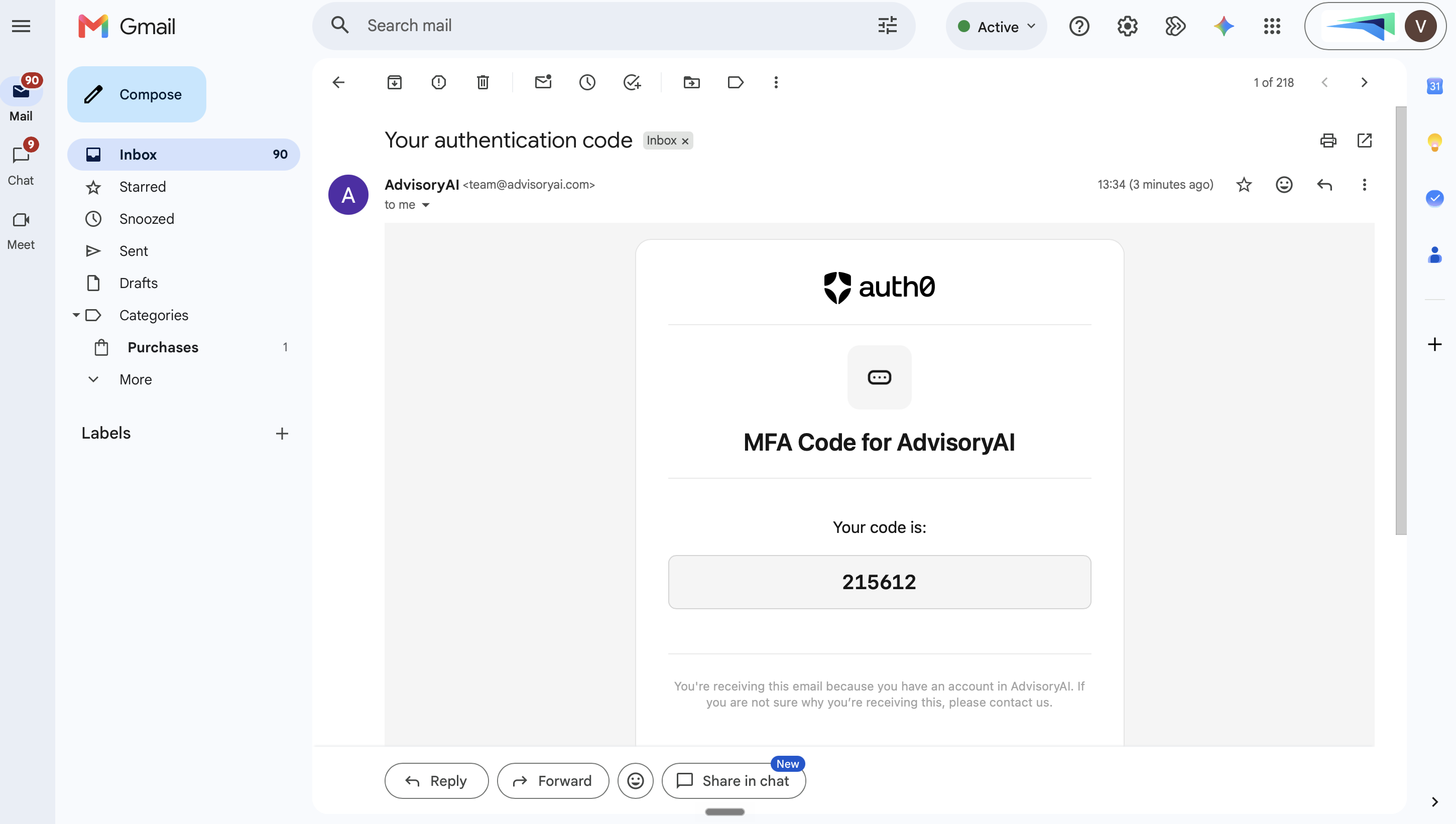
With Email Verification, a code is sent to your registered email address instead.
Locked Out?
If you've entered the wrong password three times, your account locks automatically and you'll be emailed instructions to unlock it. Follow the link in that email to get back in.
If you're stuck setting up the authenticator app and no QR code appears, get in touch with support@advisoryai.com rather than logging out and trying again — logging out can sometimes prevent the code from showing up on your next attempt, so it's best to let us sort it from our end.
If you're locked out after a 2FA reset from support, try these before reaching out again:
Clear your browser cache and cookies
Try an incognito or private browsing window
Try a different browser
Go directly to app.advisoryai.com/chat/ rather than waiting to be redirected
If none of this works, email support@advisoryai.com and we'll help you get back in.